|
Slide
Show Tab
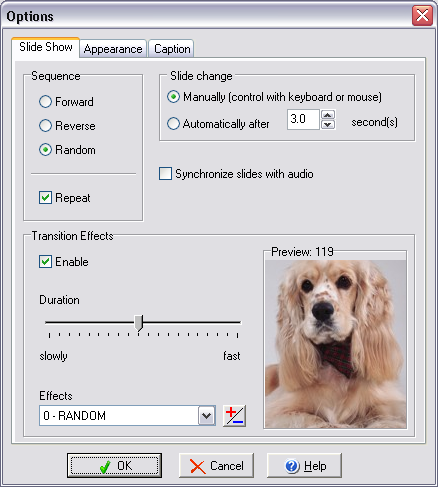
The following
options are available:
Sequence
Order the presentation of images
in a slide show from first to last.
Repeat
To repeat the slide show when
reaching the last image of a sequence
Slide
change
You can set whether every next
picture will be shown automatically after the specified time or the
program will wait for your mouse click.
Show
delay (show the next image
after ...)
Adjust the delay time for the
display of images by moving the slider or typing an amount.
Program
allows you to synchronize timing of a slide group with a slide
playlist. Select Synchronize
slides with audio. The program will calculate slide intervals
automatically.
Duration
Adjust the duration of transition
by moving the slider.
Effect
Specify which transition effect to
use when displaying the next image in the slide show.
Use  button to edit the effects list.
Appearance
Tab
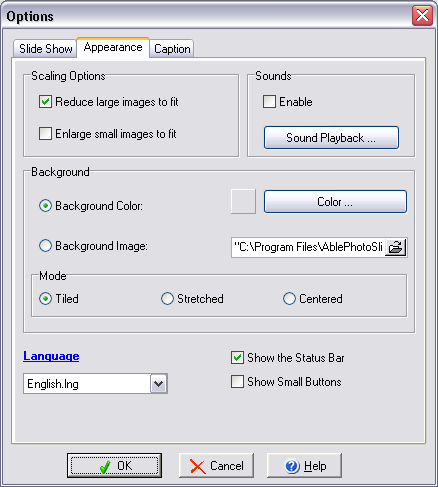
The following
options are available:
Scaling
options
Reduces and enlarges images to fit
the size of the viewing window.
Sound Playback
...
Opens the Sounds Playback dialog box
where you can select audio files to background playback.
Background
You can
specify background color, background image and background image
mode of slide show window.
Background
Color / Background Image ...
You can change the background
color or background image (from file).
Mode
|
·
|
Tiled
- Fills the screen by the background image as
tiled. |
|
·
|
Stretched - Fills the screen
by
stretching the background image. |
|
·
|
Centered - Draws the background image on the
center of the screen. |
Caption
Tab
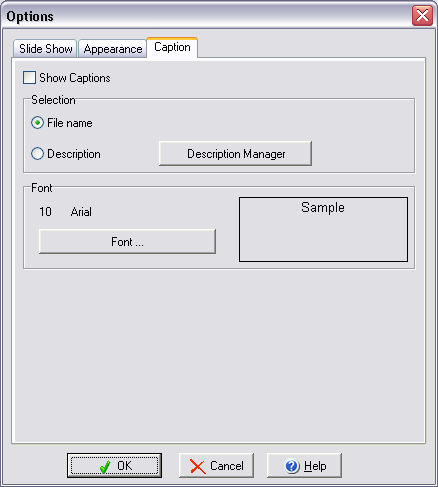
The following
options are available:
Select the Show Caption check box to add a to each image.
When viewing an image, you can add a text above it. The text can
include information you type in Description Manager or
filename associated with the image file.
Description Manager ...
In
the Description
manager dialog box, type the text you want to appear on the
image.
Font
Click
the Font button. Select
a Font, Font style, Size, and Color option.
Watermark
Date-Time
format
d
Displays the day as a number without a
leading zero (1-31).
dd
Displays the day as a number with a leading
zero (01-31).
ddd
Displays the day as an abbreviation
(Sun-Sat).
dddd
Displays the day as a full name
(Sunday-Saturday).
e
Displays the year in the current period/era
as a number without a leading zero (Japanese, Korean and Taiwanese
locales only).
ee
Displays the year in the current period/era
as a number with a leading zero (Japanese, Korean and Taiwanese
locales only).
g
Displays the period/era as an abbreviation
(Japanese and Taiwanese locales only).
gg
Displays the period/era as a full name.
(Japanese and Taiwanese locales only).
m
Displays the month as a number without a
leading zero (1-12).
If the m specifier
immediately follows an h or hh specifier, the minute rather than
the month is displayed.
mm
Displays the month as a number with a
leading zero (01-12).
If the mm specifier
immediately follows an h or hh specifier, the minute rather than
the month is displayed.
mmm
Displays the month as an abbreviation
(Jan-Dec).
mmmm
Displays the month as a full name
(January-December).
yy
Displays the year as a two-digit number
(00-99).
yyyy
Displays the year as a four-digit number
(0000-9999).
h
Displays the hour without a leading zero
(0-23).
hh
Displays the hour with a leading zero
(00-23).
n
Displays the minute without a leading zero
(0-59).
nn
Displays the minute with a leading zero
(00-59).
s
Displays the second without a leading zero
(0-59).
ss
Displays the second with a leading zero
(00-59).
z
Displays the millisecond without a leading
zero (0-999).
zzz
Displays the millisecond with a leading zero
(000-999).
am/pm
Uses the 12-hour clock for the preceding h
or hh specifier, and displays 'am' for any hour before noon, and
'pm' for any hour after noon.
The am/pm specifier
can use lower, upper, or mixed case, and the result is displayed
accordingly.
a/p
Uses the 12-hour clock for the preceding h
or hh specifier, and displays 'a' for any hour before noon, and 'p'
for any hour after noon.
The a/p specifier can
use lower, upper, or mixed case, and the result is displayed
accordingly.
'xx'/"xx"
Characters enclosed in single or double
quotes are displayed as-is, and do not affect formatting.
|


